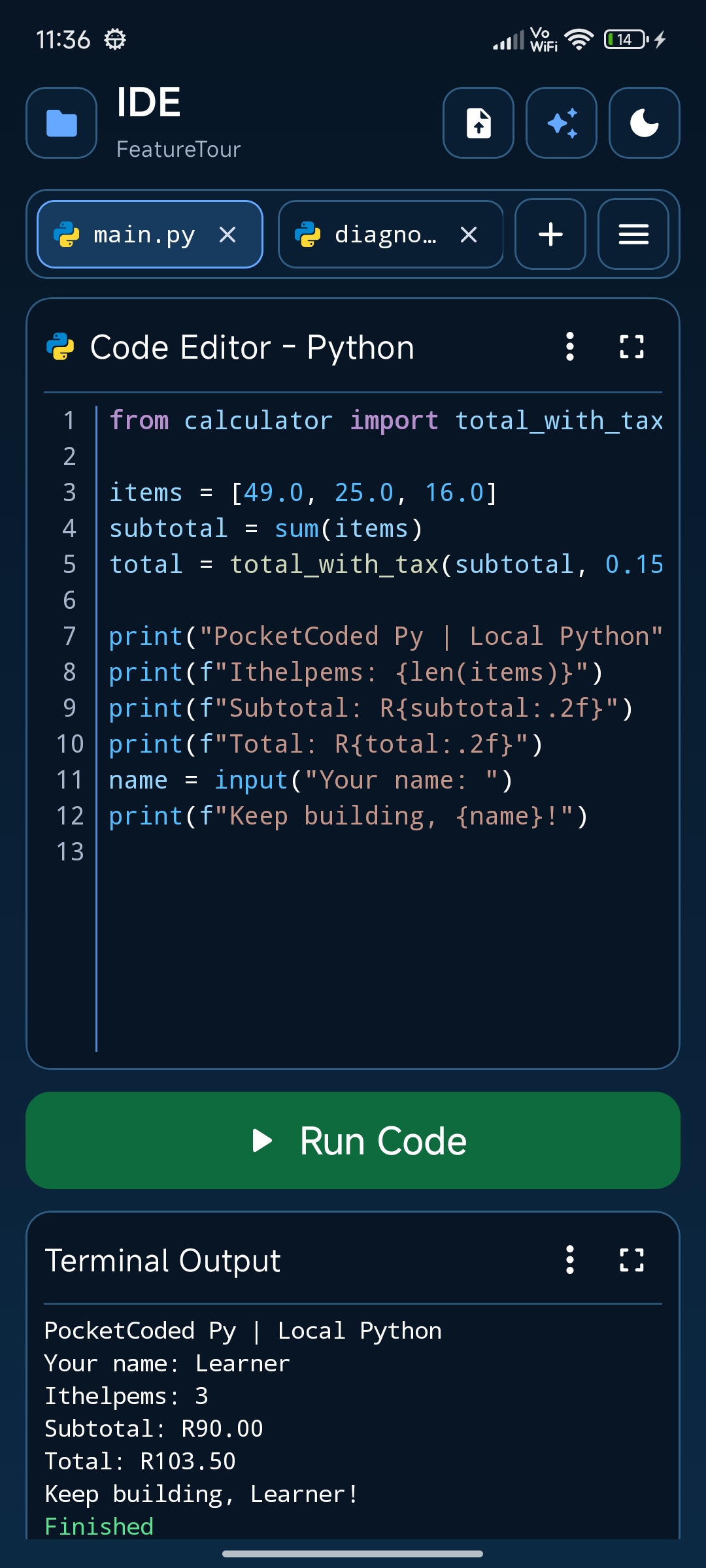
Write and run Python, debug your code, test your projects and explore data on Android. Work with databases, manage dependencies and Git repositories, or connect to a remote server when your project needs more computing power.
Bring a fuller development workflow to the device you already have.
Local editing and execution, with connected tools when needed
Made for real projects
Start small. Build further.
Write with guidance
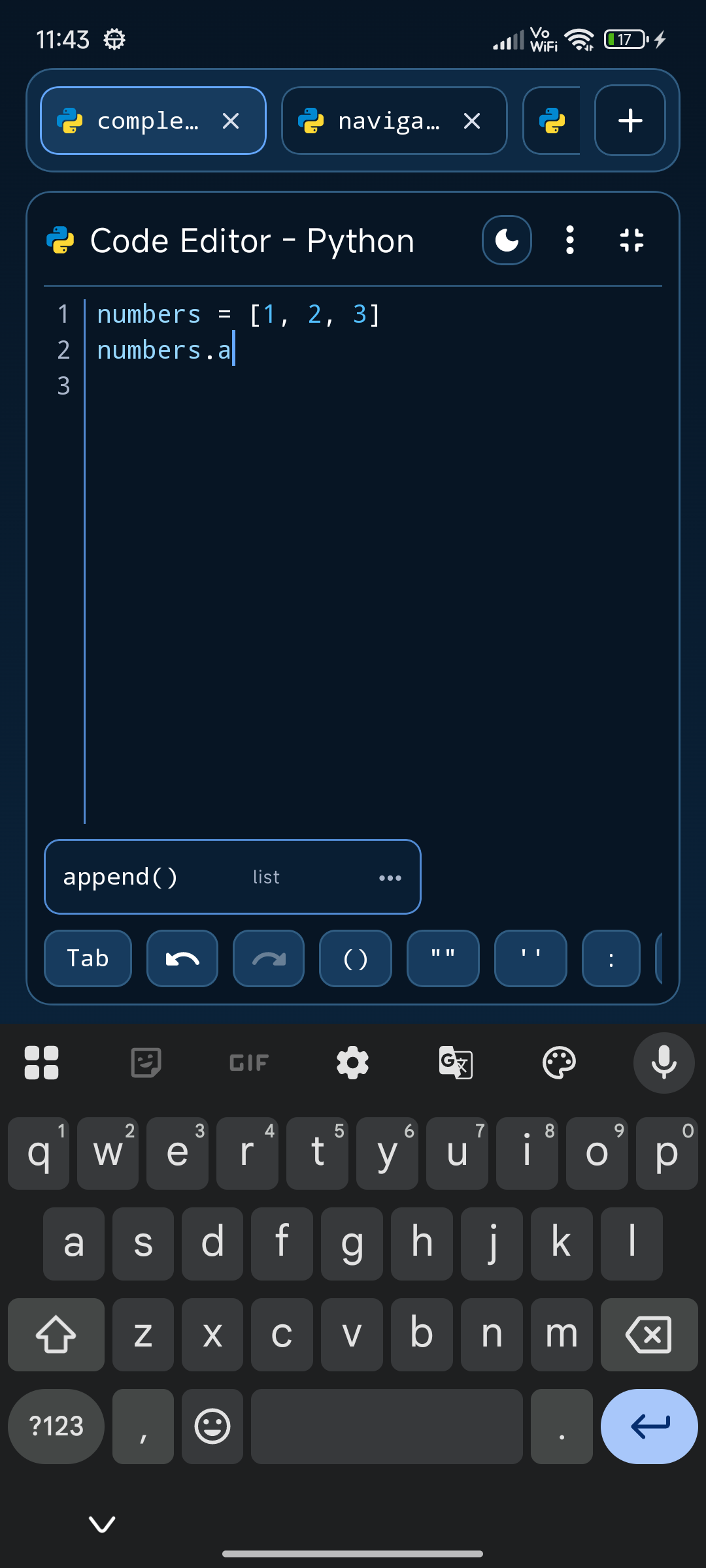
Use file tabs, Python completion, function signature help and code inspections. Explore completion explanations and examples, apply supported quick fixes, and use automatic indentation and coding shortcuts designed for a phone keyboard.
Expand the editor when you need more room for code.
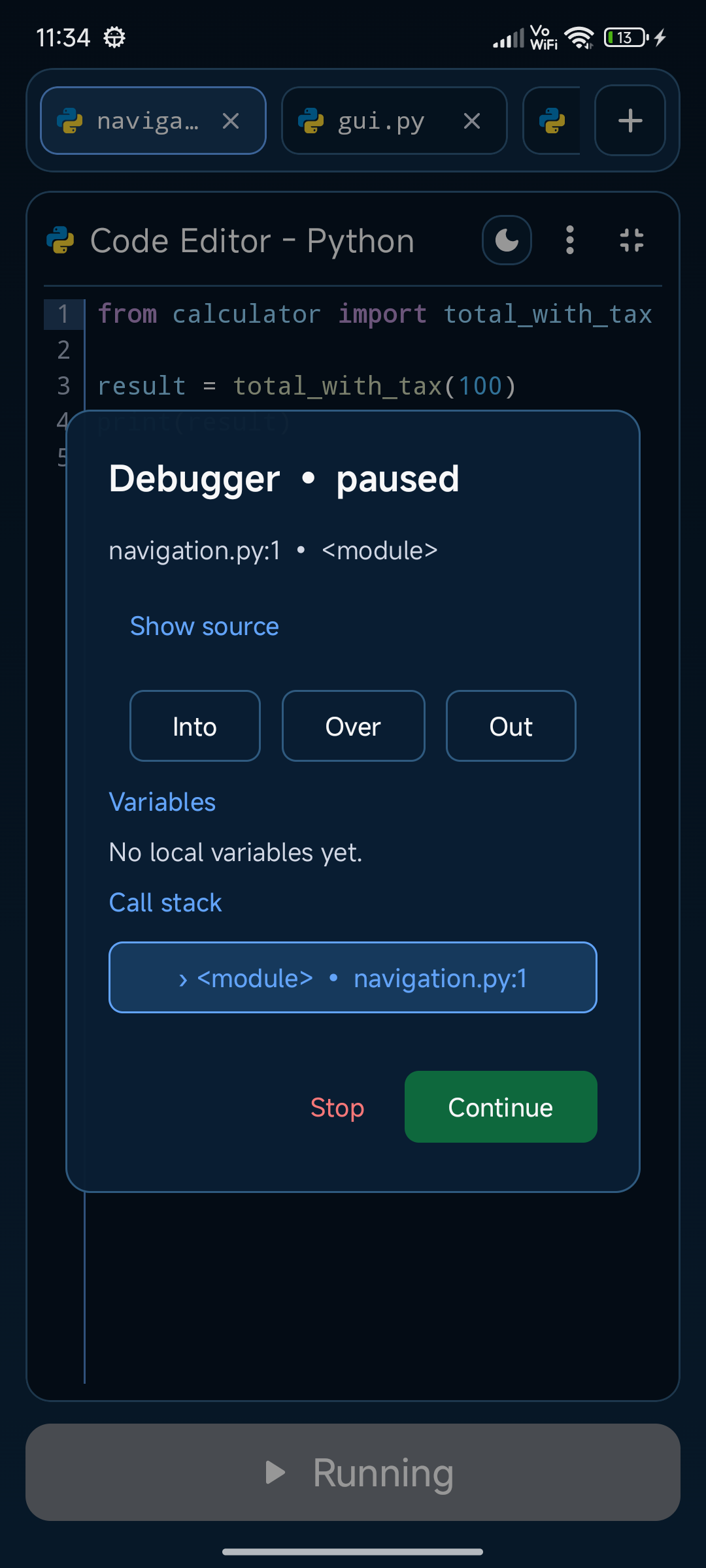
Tap a Python line number to replace it with a red breakpoint dot. Tap again to remove the breakpoint.
Pause execution, step into functions, step over statements, step out of functions and continue running. Inspect local and global variables, explore the call stack and open the paused source location. Breakpoints are remembered for each project.
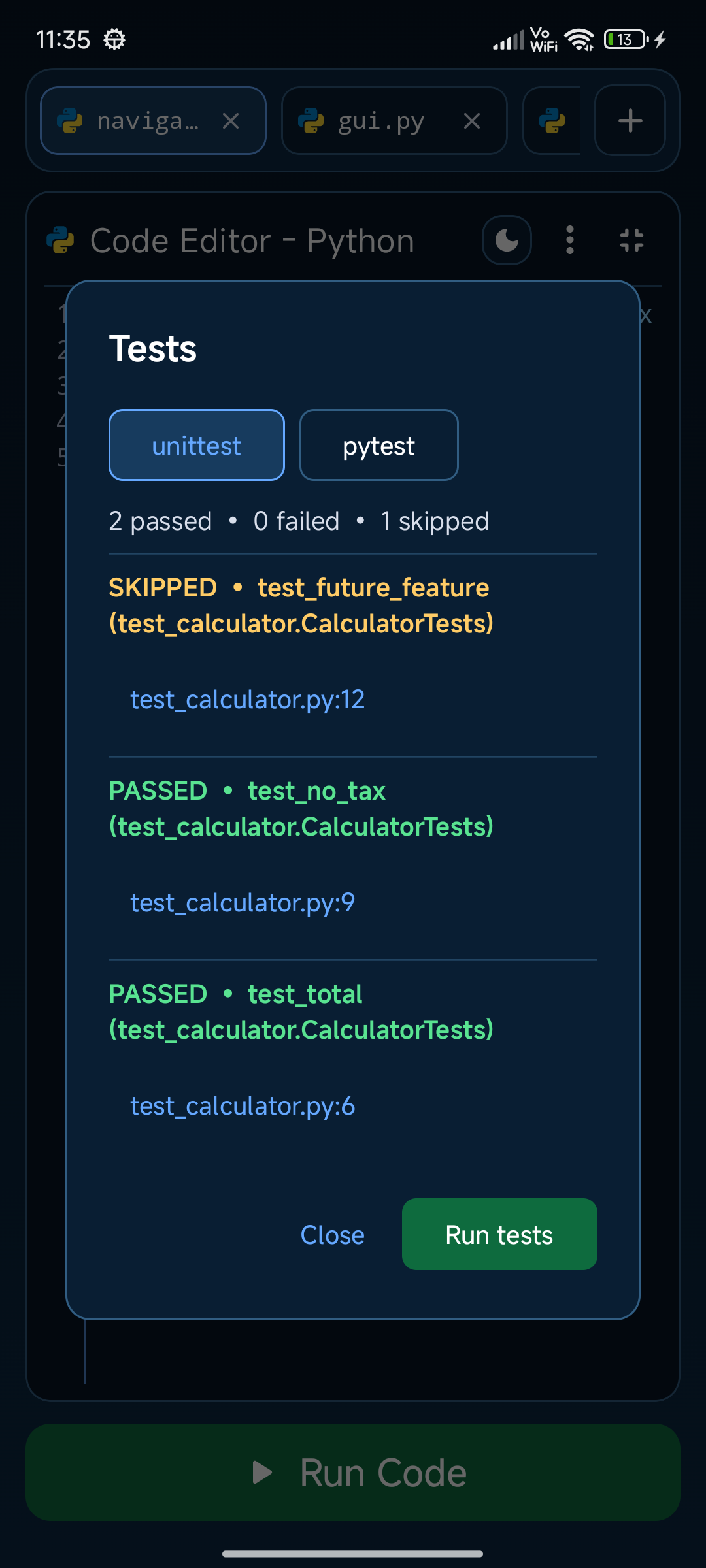
Discover and run project tests using unittest or an installed compatible version of pytest.
See individual passed, failed and skipped results, inspect failure details and open the relevant source location. Stop a test run when needed and run it again after making changes.
Autosave keeps your edits moving towards disk, while visible failure messages help you identify saving problems.
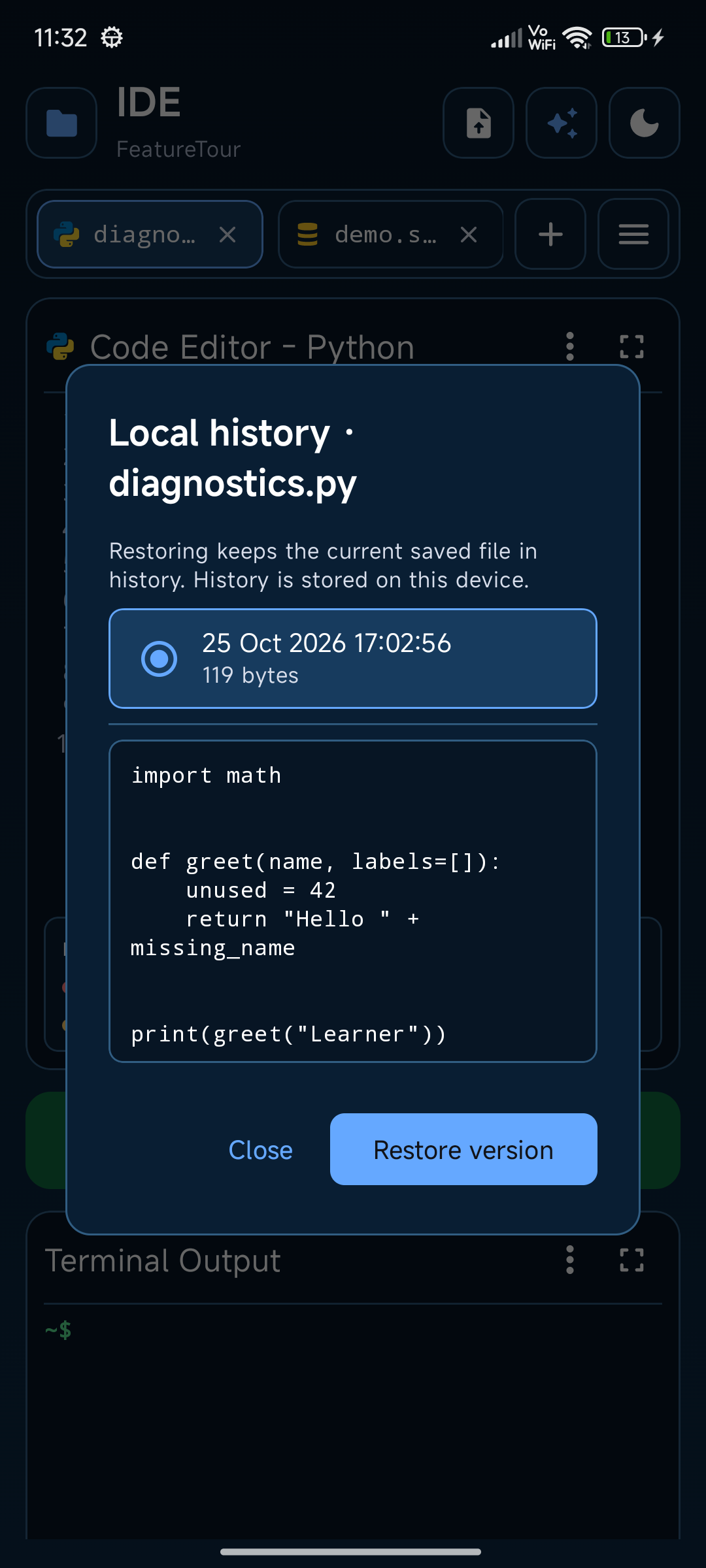
Review recoverable edits after an interruption, browse earlier file versions and restore a previous version through local history. Use Save now whenever you want to retry pending changes.
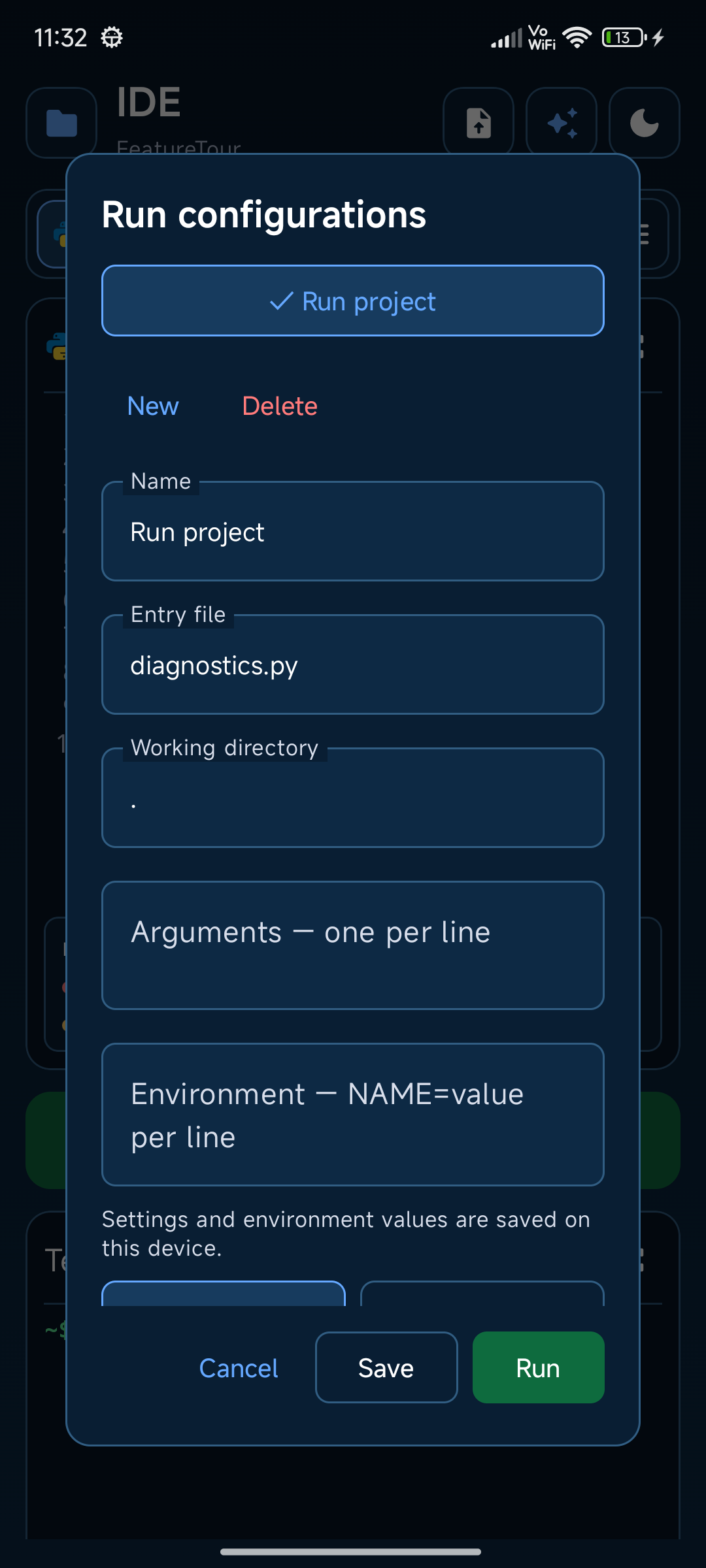
Create named run configurations for different tasks in the same project.
Choose the starting script, working directory, command-line arguments and environment variables. Save the configuration and reuse it for your next run.
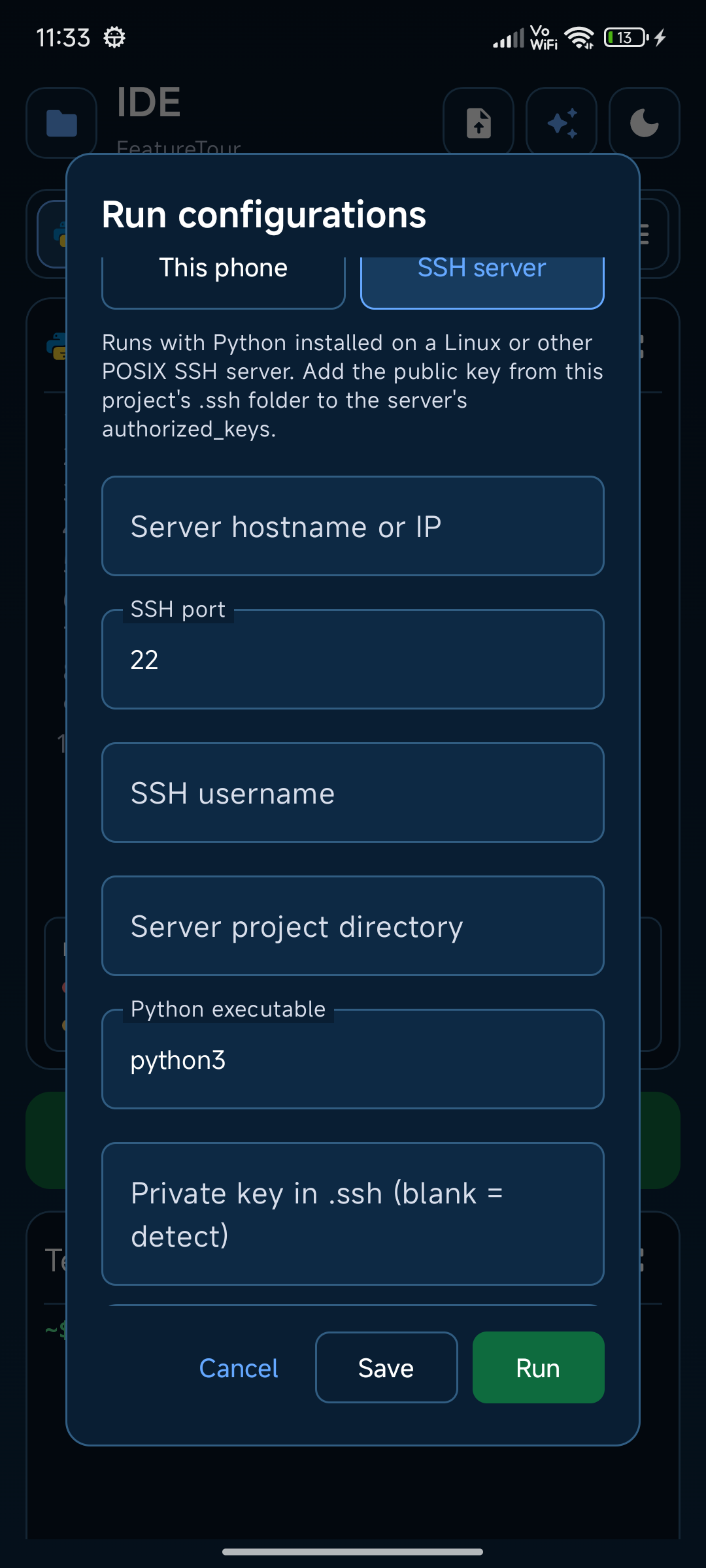
Edit on Android while running Python on a compatible computer or server over SSH.
Configure the server connection, Python executable and remote project directory. Optionally upload project files before execution, follow output in the app’s terminal and stop the remote run when needed.
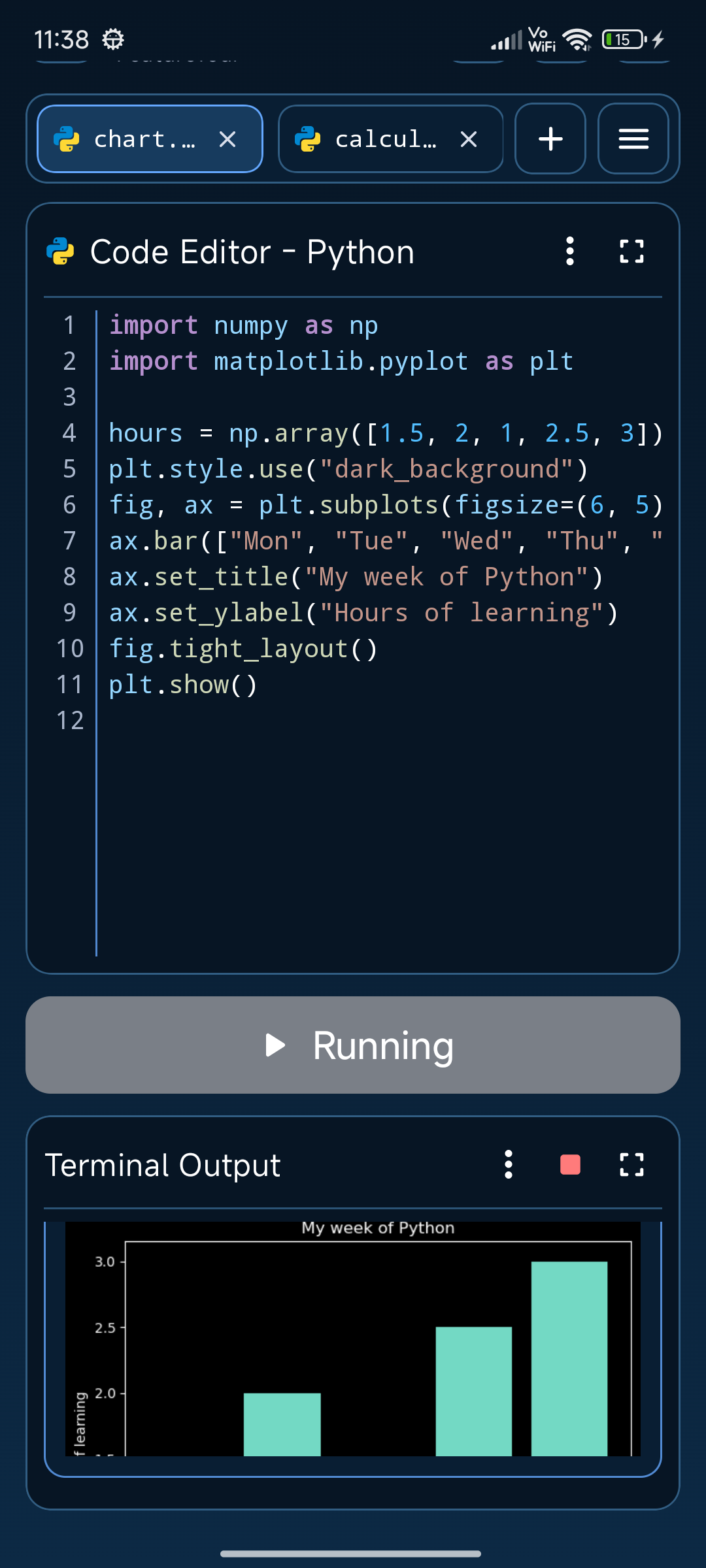
Use included NumPy, SciPy and Matplotlib for numerical work, scientific computing and charts.
Process text, CSV and JSON files, calculate results and display supported Matplotlib figures inside the app. Install additional libraries when compatible Android packages are available.
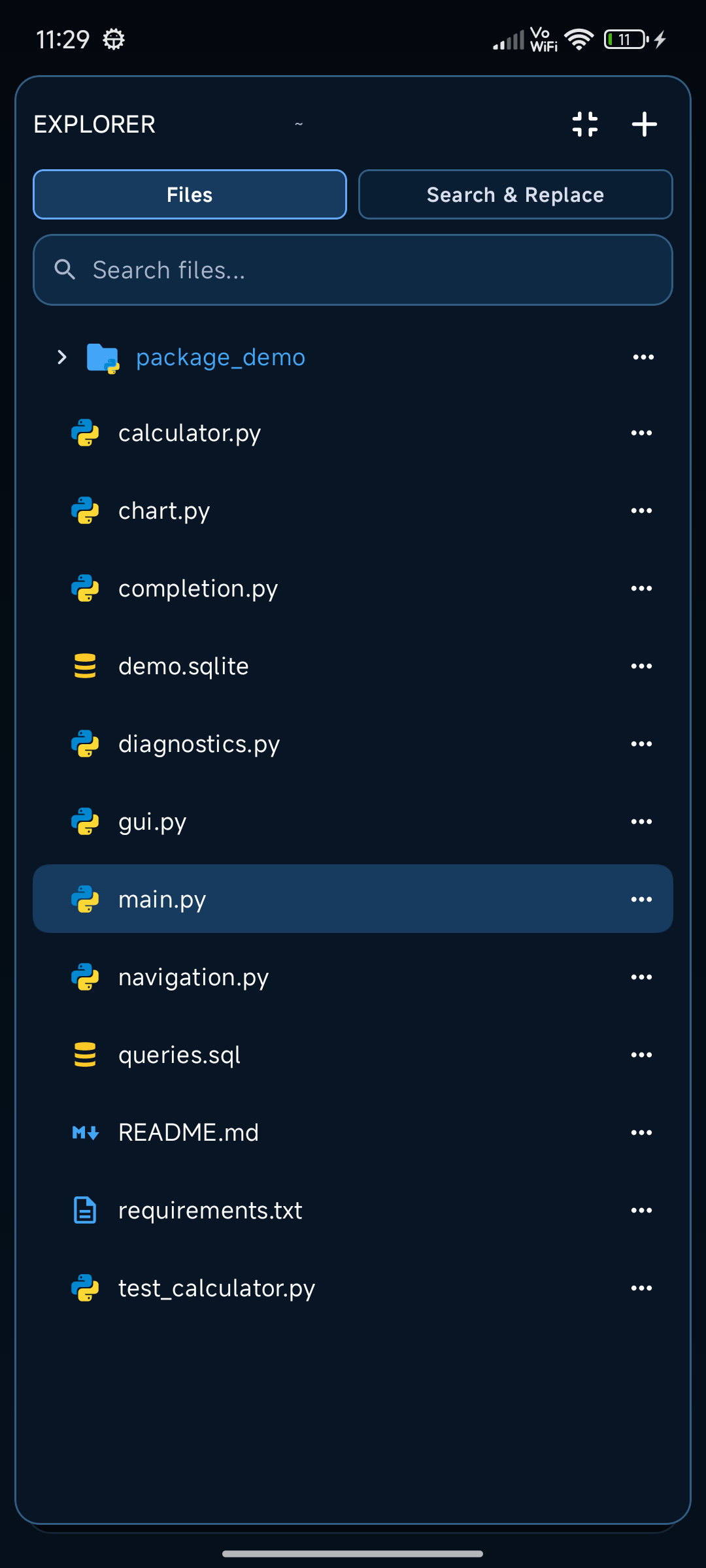
Create and search projects, import individual files, project folders or ZIP archives, and organise your work into nested folders.
Rename files and folders, switch between open tabs and export your work to a location you choose. Personalise the workspace with light and dark colour themes, adjustable panels and fullscreen views.
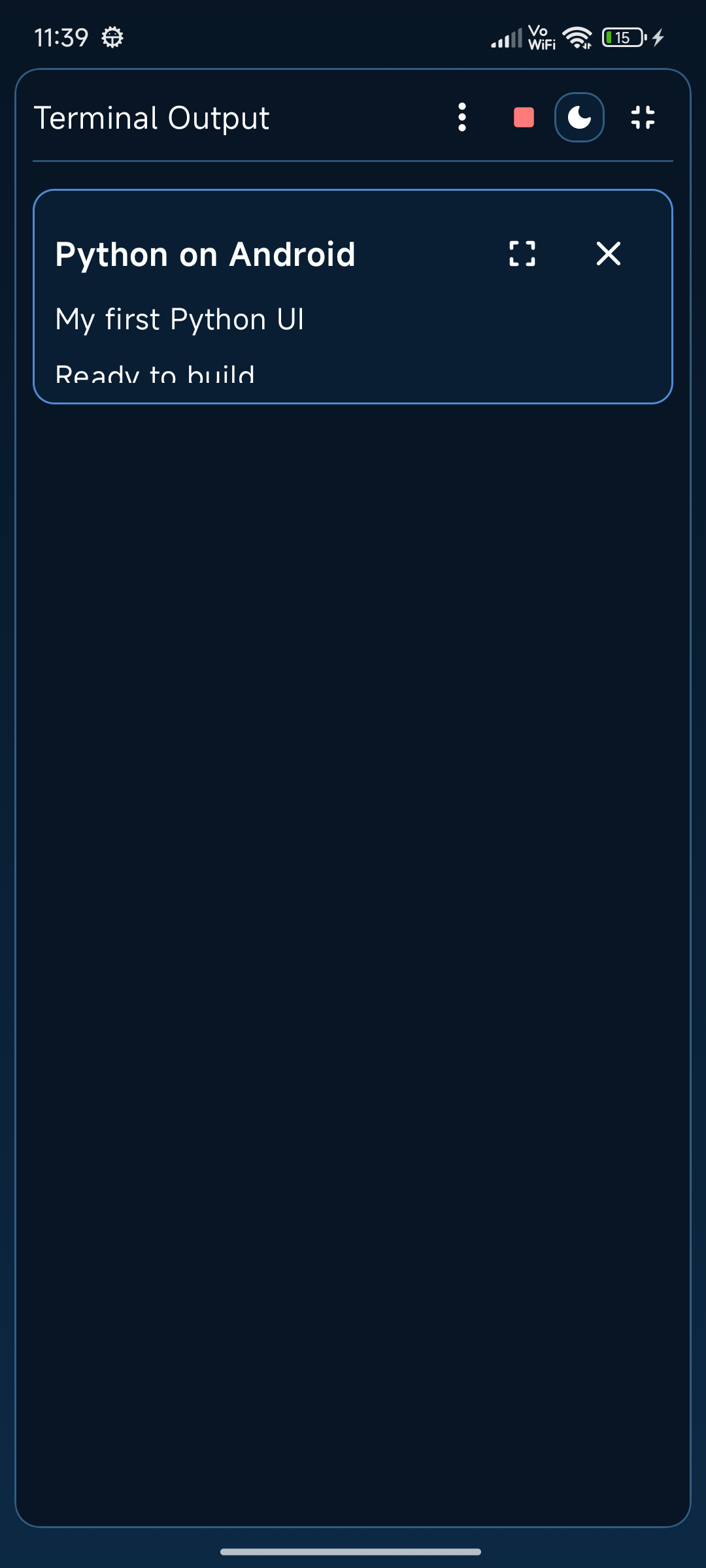
Build supported Tkinter interfaces with buttons, text inputs, dialogs and canvas drawings.
Explore Turtle graphics for visual learning and drawing exercises. The Android interface layer supports a subset of desktop Tkinter, so some existing GUI programs need adjustments.
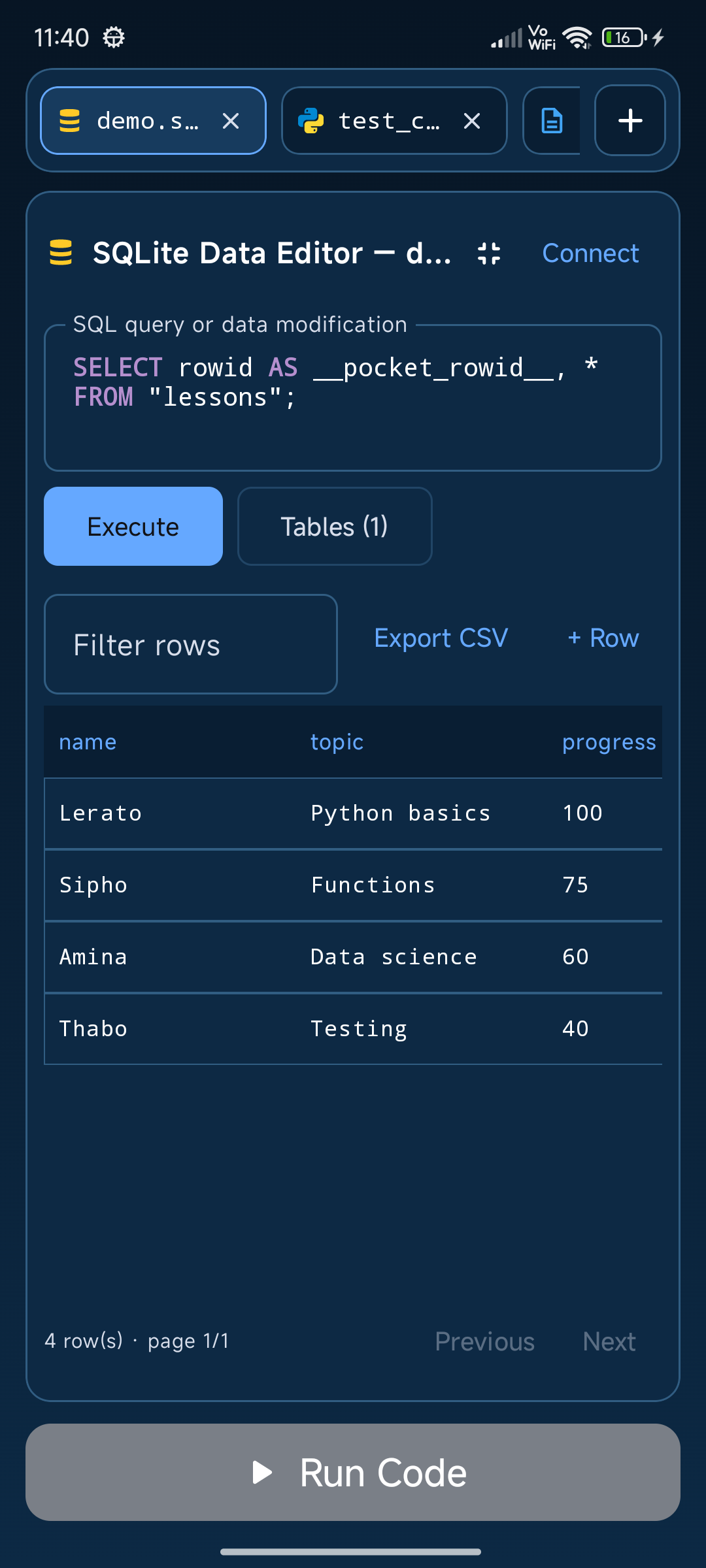
Browse SQLite tables, write and execute SQL, filter and sort displayed records, and export results as CSV.
Add records, edit cells and modify or delete rows in supported local table views. Connection tools are also available for PostgreSQL, MySQL, Oracle, SQL Server, BigQuery and Snowflake when you have suitable network access, credentials and permissions.
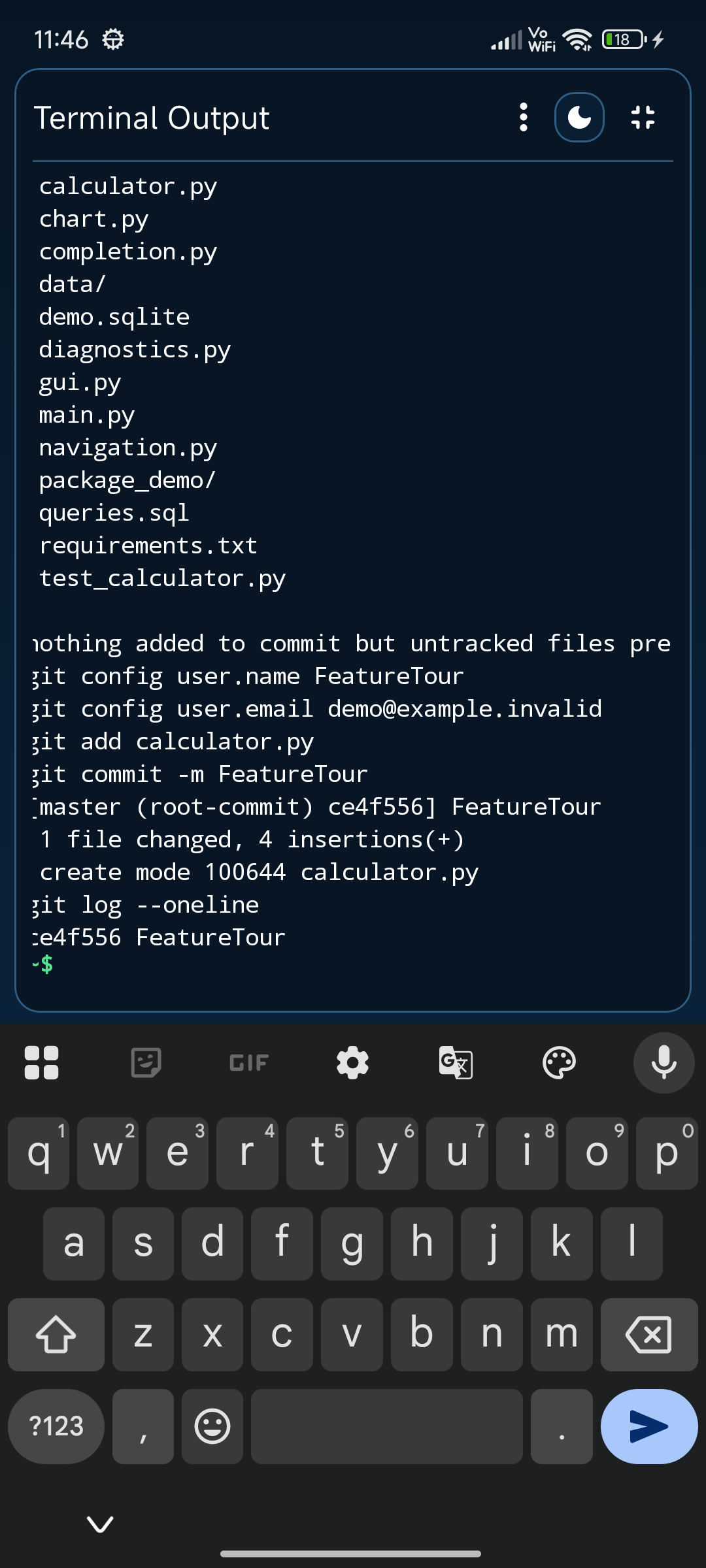
Use Git to clone repositories, review changes, commit work, manage branches, pull updates and push changes.
Generate SSH keys and transfer files or folders through SFTP. Use terminal tools for project navigation, file operations, HTTP requests and supported shell commands.
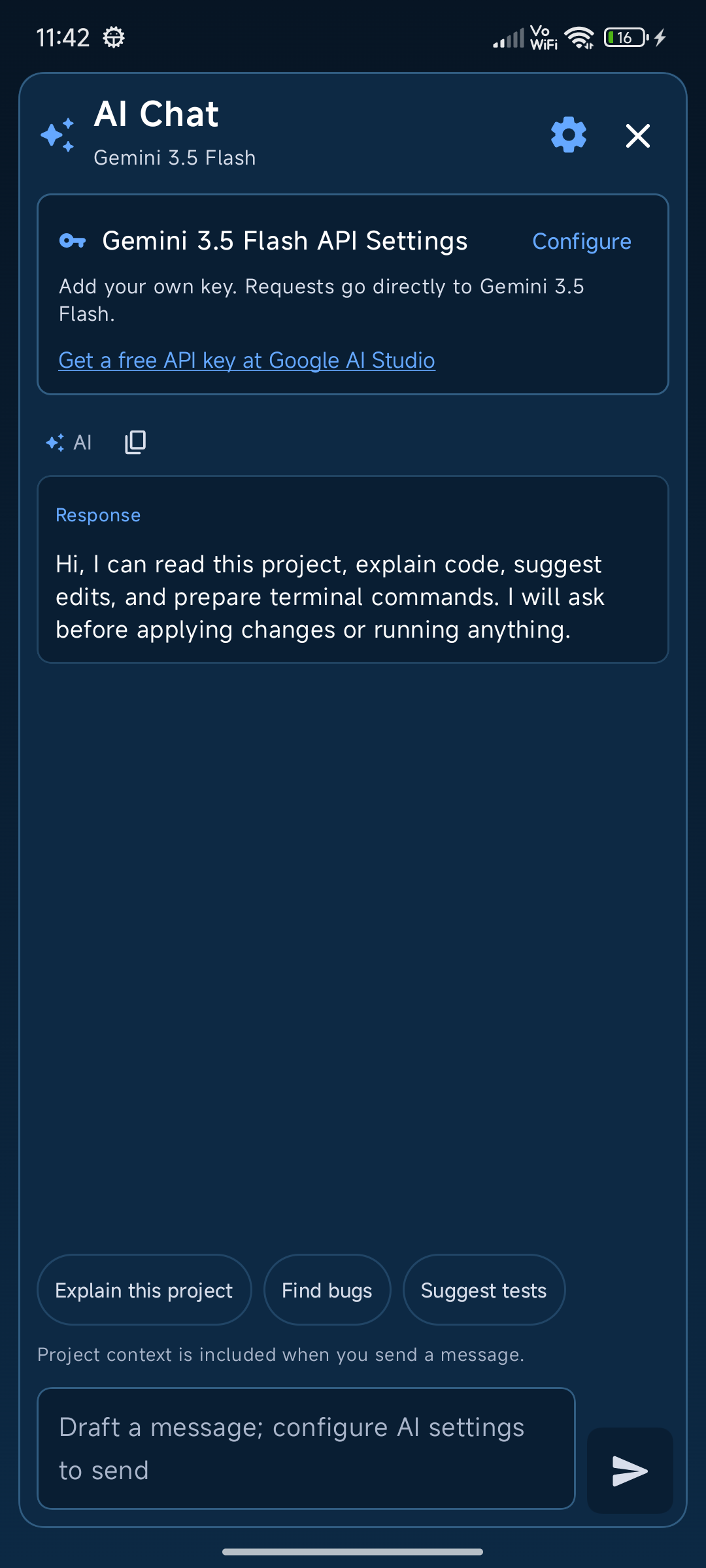
Ask for code explanations, debugging suggestions, tests and proposed changes using relevant project context.
Choose a supported AI provider or compatible custom endpoint. Review suggested file changes and terminal commands, then tap to approve them. The latest recorded AI file changes can be undone.
View screenshot ↗ai chat — interface/settings; a configured provider is required for responses.
Offline-first, explained
Your code can keep going.
Python editing and execution happen locally on your phone. Once the required packages are installed, compatible local projects can run without downloading their code or dependencies again.
Package downloads, remote Git operations, SFTP, remote execution, remote databases and most AI connections need network access. Sign-in, verification and access checks can also require an internet connection.
hello.pyIllustrative Python example
# An idea starts with a few lines.for idea in ["learn", "create", "build"]:
print(f"Keep going: {idea}")
Learn a concept. Test a script. Take the next step.
Before you begin
Know what to expect.
Android and package compatibility
Local execution uses Python 3.10. Additional packages must support that Python version and the Android environment.
Some native dependencies, desktop executables and operating-system features are unavailable. Opening other text files lets you edit them; it does not add a runtime for those languages.
Debugging and code inspections
The step debugger works with project Python code on the main execution thread. Native library internals and other threads are outside its current stepping support.
Inspections help identify common problems, but running tests and checking actual program behaviour remain part of the development process.
Remote execution requirements
Remote execution needs a reachable compatible SSH server, SSH key authentication, and a suitable Python installation with the required dependencies on that server.
Interactive input during remote runs is currently unsupported. Server capacity, configuration and availability determine what those remote projects can run.
Saving and backups
Local history retains a limited collection of earlier versions on the device. Recovery depends on the edits that were successfully recorded before an interruption.
Use project exports or a Git remote for a separate backup. Account sign-in does not automatically back up project source files to the cloud.
Your AI choices
AI requests share your prompt and included project or terminal context with the selected provider.
Most provider connections require your own API credentials and configuration. Availability, usage limits and charges depend on that service. Review generated code and proposed actions before applying them.
Trial and Premium
A 14-day trial gives access to the workspace. Trial users can open Upgrade from the account menu whenever they are ready.
Continued workspace access after the trial requires Premium, offered as a one-time Google Play purchase with purchase restoration. Check Google Play for the current regional price. External AI, hosting and database services may charge separately.
Inside the real app / 26 October 2026
Explore the workspace.
Browse original device captures. Select a screenshot for a closer look. Some captures show setup screens or work in progress.


 View screenshot ↗